v2.4.0: Your AI Employee Gets Hands, Meet the Geta.Team Desktop App

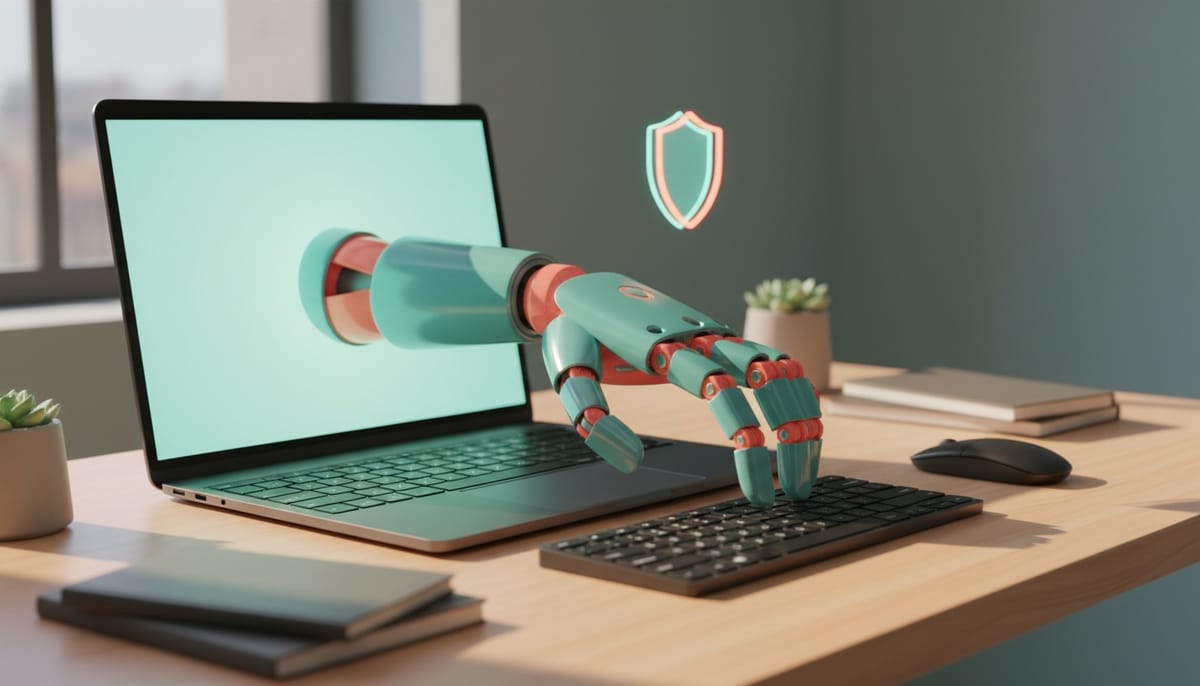
For a year, your AI employee could read your email, run your blog, manage a Kanban board, and drive a browser. With v2.4.0, it gets something bigger: hands on your actual computer. Meet the Geta.Team Desktop App, a native Windows application that lets a paired employee operate your machine the way you do, with a serious safety system wrapped around every action.
Your AI employee can now use your computer
The Chrome extension let your employee work inside the browser. The Desktop App takes that out of the browser and onto the whole machine. Once you pair it with one of your employees, that employee can move the mouse and type, see what is on screen, open and switch between apps, work with your files, and run commands, all on your behalf.
Crucially, it does not just guess where to click. It reads the actual structure of what is on screen, so it targets the real button or field instead of aiming at pixels and hoping. That is the difference between an assistant that fumbles and one that actually gets things done.
The app lives quietly in your system tray. Close the window and it keeps running in the background using almost nothing; the tray icon shows you at a glance whether it is connected, which employee is paired, and gives you the switches to control it.
Safety was the whole point
Handing an AI control of your computer is only a good idea if you stay firmly in charge. So the safety system here is not an afterthought, it is layered, and you hold every lever.
- Pairing is consent. Control is only armed when you pair an employee, and you can turn it off at any moment.
- Per-capability switches. Files, shell, mouse and keyboard: each can be turned off independently. Want it to read the screen but never touch your files? Done.
- Risk tiers. Genuinely catastrophic commands (formatting a disk, mass deletions, wiping system folders) are always hard-blocked, no exceptions. Merely risky actions pause and ask you to confirm in real time.
- It yields when you do. Start typing and the agent backs off, so you are never fighting it for the mouse.
- A panic button. One global hotkey (Ctrl+Alt+Shift+P) freezes everything instantly.
- Privacy built in. Password fields are detected and blanked out before any screen content leaves your machine, and sensitive windows like banking or DRM-protected apps are flagged so the agent does not act blindly.
- An audit log records what the agent did, append-only, so there is always a clear trail.
There is also a faster mode for people who want fewer interruptions: it skips the routine confirmations but keeps the catastrophic block list firmly in place. Your call.
It installs like a real app
This is not a script you babysit. It is a proper Windows application with a real installer, desktop and Start-menu shortcuts, and an uninstaller. The first time you open it, a short wizard walks you through accepting the usage terms, pointing it at your instance, signing in (multi-factor and all), and pairing your employee. After that, it goes straight to work each time you launch it.
It also keeps itself current. The app checks your instance for updates, proposes them, shows you a download progress window, and installs only when you confirm.
One honest note: code signing is still on the way, so for now Windows will show a one-time SmartScreen warning when you install. Click "More info" then "Run anyway". There is an explainer built right into the dashboard download screen and the setup guide.
And when your employee is working on your desktop, you see it in the chat as friendly activity badges (clicked, typed, took a screenshot, ran a command) rather than raw technical output, so you can follow along.
The Desktop App is an Enterprise feature, and it is Windows first, with macOS marked "coming soon" in the download screen.
Every employee now starts with the full toolkit
We also tidied up how employees are set up. Previously, employees hired from the catalog could end up with a narrower set of skills than ones created through the guided flow. Now every employee, however you create it, starts from the same complete skill set. The job-specific knowledge that makes a catalog hire good at its role is still there; it just no longer comes with a smaller toolbox.
On top of that, there is a new safety net: after an employee is set up, the system double-checks that every skill it is supposed to have is actually installed, and quietly fixes any that were listed but missing. A few employees had skills like Kanban or SharePoint declared but not actually present; that gap is closed, and it stays closed for any skills we add in future.
A safer, tidier Kanban
The Kanban board got two improvements. First, a security fix: the board commands your agent uses are now locked to that specific employee through its own secure token, so an agent can only ever reach its own board, never anyone else's. Second, a convenience: agents can now reorder cards within a column directly, instead of the clumsy delete-and-recreate dance they used before.
A cleaner download experience
Finding and installing the Desktop App is straightforward. The "Desktop App" entry in the dashboard opens a clean, mobile-friendly screen with Windows and macOS tiles, a short description of what the app does, and a built-in answer to "why does Windows warn me?". No hunting around.
Picking it up
The Desktop App is available now for Enterprise instances from the dashboard's Desktop App screen. Hard refresh (Ctrl+Shift+R) to get the latest dashboard, and the provisioning and Kanban improvements apply to employees automatically.
Want to test the most advanced AI employees? Try it here: https://Geta.Team