v4.0.24: Record Any Call Without Putting a Bot In It, Get Live Help Only You Can See, and Sign In With Your Company Account

Every meeting AI you have used joins the call. It appears in the participant list with a name like "Otter.ai Notetaker", everyone sees it, and on a sales call somebody always asks what it is.
v4.0.24 records the call from your own computer instead. Your microphone is you, your computer's sound is everyone else. Nothing joins the meeting, because nothing is in the meeting.
That also means it does not care what you are using. Zoom, Teams, Meet, WhatsApp, a phone app, anything that makes sound on a Windows machine. Windows only for now: the Mac app 1.0.80 shipped alongside it, but recording stays switched off there until system sound capture exists on macOS, which is a platform problem rather than a scheduling one. Start and stop from the Record button in the app's tab bar, the tray menu, or Ctrl+Alt+Shift+R, with a red dot and a running timer while it goes.
Tell people, because the software will not do it for you
The start notification reminds you to tell the others, and an Announce button copies a ready sentence, "This call is being recorded and transcribed.", in your account's language, to paste into the call chat.
Use it. Recording law varies by country and by state, plenty of places require every participant to consent, and a tool that is invisible to the other side puts that entirely on you. The reminder exists because the absence of a bot in the participant list removes the one signal people normally rely on.
To be plain about the division of labour: the app reminds you and writes the sentence. It does not tell anybody anything by itself. Nobody on that call will be informed unless you inform them.
What your employee does with it
When you stop, the whole conversation in order goes to the employee you chose, in its calls folder, with instructions to remember what matters, put the action items on your kanban, do whatever it was asked to do, and send you a short summary. In its chat the call appears as a card with its length and a link to the transcript.
Worth being exact about what survives the call, since this is the sort of claim people should be able to check. Deleted when the call ends: the instance's working copy, meaning the sentences transcribed one by one while the call ran, the voice prints, and the temporary audio chunks. Kept: the full transcript as a file in your employee's calls folder, which is what the transcripts view displays, the MP3 beside it, and whatever your employee took from it into its memory, your kanban and its summary. If nothing was said, nothing is kept at all, not even audio.
You pick which employee per recording, from all of yours, paired with that computer or not. The last one you chose comes first, and the keyboard shortcut uses it.
The call's audio, your microphone and your computer's sound mixed, is uploaded in pieces as the call runs and kept as an MP3 beside the transcript. The transcripts view plays it back with speed control, and clicking any line in the transcript jumps the audio to that moment.
That view lives under "Calls recorded on the computer", with a calendar marking the days that have calls, a search, and each call shown as a conversation: you on the right, every other voice in its own colour on the left, timestamps in your own time zone. Copy it, or download it as Markdown.
The part nobody else has: an assistant only you can see
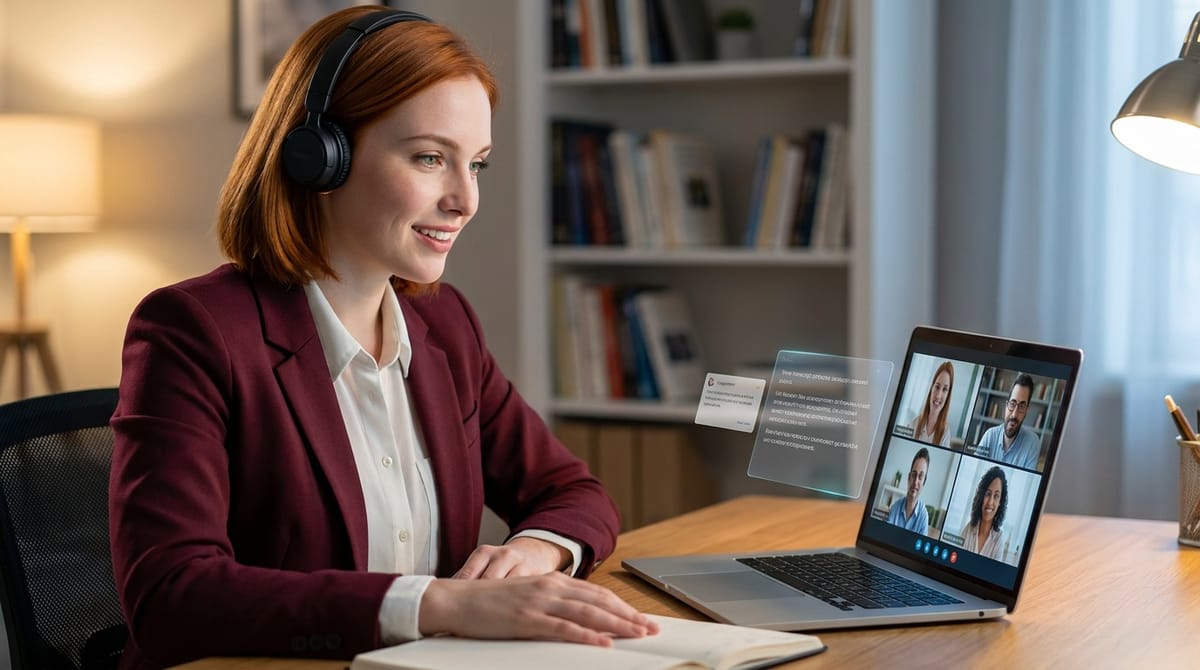
While you record, a small window sits on top of a corner of your screen without stealing focus from the call. It shows what is being said as it is transcribed, the running time, the language, and a Stop button.
It also, occasionally, suggests one short thing to say or ask, drawn from the most recent lines. Or nothing, which matters more than it sounds: an assistant that comments constantly is a distraction, not help.
You can also ask it anything, in a box or through four buttons: Help me, Recap, Agenda, To-dos. A question reads the call so far, up to its last 200 lines, roughly a 30 to 40 minute conversation, and the employee knows the date and time.
The other people never know it is there. That is the point, and it is also the reason the consent paragraph above is not boilerplate.
Working out who is speaking
Voices are told apart live, phrase by phrase. A voice print of each phrase is computed on your own computer with an open model, then sent to the instance which matches it during the call. Your own voice is known from the microphone, so a headset leaking your voice back is not mistaken for another participant.
Nothing carries over between calls. The voice prints are deleted when the call ends and none are stored, so your employee does not recognise anyone by their voice next time. It works out who people are from what is actually said in the conversation. That is slower than a stored voiceprint database would be, and it is the right trade: we are not building a record of what your contacts sound like.
A new voice only gets a number at its second phrase. When the recording stops, a person who was split in two is merged, a "person" who only ever produced one phrase, a laugh, a cough, a bar of music, is folded into the nearest real speaker, and everyone is renumbered in the order they first spoke. No voice print is kept after the call.
Sound capture takes every application's audio except its own, before the output device, so headsets whose drivers refused the usual capture now work, and it covers every active output at once because call apps love to play audio through a different device than the one you expect. If you are not wearing headphones, the other voices your microphone picks up are kept out of your own lines.
Quitting the app hands the call over before it closes, and a recording cut short is handed over the next time you record.
Sign in with your company account
The other half of this release is single sign-on, on Enterprise Edition. Microsoft Entra ID, Okta, Google Workspace, Keycloak, or any OpenID Connect or SAML 2.0 provider.
Setup looks like our connector guides: pick your provider from the presets, paste the issuer URL, client ID and client secret, press Test, and it tells you whether the provider answers. The redirect URI to hand back is there with a copy button. The client secret is stored encrypted and never shown again. A Setup guide button opens numbered step cards for your specific provider, in your language, covering where to click on their side, what to paste, what to copy back, and what to do when it does not work.
SAML gets its own treatment: the screen shows the entity ID, reply URL and metadata URL to give the provider, each copyable, and pasting the provider's metadata URL fills in their sign-in URL, entity ID and certificate in one click. Every SAML response must be signed by the provider's certificate, must answer a sign-in this instance actually started, and is accepted exactly once, so a captured response replayed later is refused.
Access is controlled by a list. Anyone who already has an account signs in with SSO and keeps everything. Anyone else needs their email address, or their whole domain, on the list, and each entry carries the same rights an email invitation would: administrator or not, how many employees, account duration, which employees are shared. An email entry beats its domain's entry. Anyone not listed gets a clear refusal.
An SSO only option closes password sign-in for everyone except administrators, who keep it so somebody can get back in when the provider is down. Passwords are never deleted: turn the option off and they work again exactly as before. While it is on, every password attempt gets an identical answer, so the login page tells an attacker nothing about who has an account.
Underneath: authorization code flow with PKCE, state and nonce, the ID token fully verified, and an email trusted only when the provider says it is verified, with an option for Microsoft Entra ID which never does. The session never travels in a URL. The provider returns a one-time code, valid 60 seconds, traded for the session.
The browser extension and the desktop app show the same button. The extension signs in in a normal tab, and the desktop app opens your real browser, because Google refuses sign-ins inside an application's own window, then receives the result on that computer only. The mobile apps have their contract ready and follow shortly.
And the smaller things
The browser extension now speaks all eleven languages across every screen, following the language you picked for the Geta.Team interface, or your browser's before you sign in.
Browser access stopped being a cryptic icon. People kept switching it off while trying to work out what it did. It is now a bar under the chat header that says in words whether your employee can use this browser, with a switch or an Allow button, and asks before you remove access. If you gave the employee a different browser, it no longer looks cut off: the bar says which one it is using and offers "Use this one too". And when the employee's browser is closed while you work in another, it tells you and asks for that one instead of failing silently.
Desktop app updates are now pushed. When a version is published, open apps are told immediately and offer it in a box: Update now, or Later, which asks again in a week. No more polling on a timer. Settings show the installed version with a Check for updates button, and the update installs silently and restarts the app.
The Studio opens files up to 25 MB as documents now, up from 10 MB.
Fixes
A handful of desktop app repairs: the access code form was being cut off on instances behind Cloudflare Access, so no email ever left. Minimizing the window sent it to the tray instead of the taskbar, which only closing should do. Message boxes carried the Geta.Team logo rather than your brand's, and Start Menu and desktop shortcuts now take your brand's name and logo too. The sign-in fields sat on one line. And after an SSO sign-in the app forgot which instance you used and offered the previous one on next launch.
Elsewhere: renaming an employee could end on an error despite the change saving, because the audit entry referred to a value that no longer existed. The end-of-voice-call hook returned a 500 instead of saying session_id is required. Sign-in now explains, in your language, that a verification code could not be emailed to that address rather than showing "Internal server error". Extension messages, gat-ui answers, Enhance prompt, Continue conversation and voice dictation now wait for the chat to be ready instead of trying once a tenth of a second later and leaving your message stuck in the box.
The "Access Restricted" notice, sent when somebody not on an employee's allowed list writes to it, was arriving twice, on every attempt, and in Geta.Team colours on white-label instances. It now goes out only when the sender's own mail server has not already told them, at most once a day per sender and employee, and carries your brand.
An employee's start could fail on a trivial error: when a new container's address could not be recorded, the error report itself crashed and took the startup with it.
And a real one for anyone self-hosting on a budget host: a perfectly good Gemini key being rejected as invalid. Some providers hand you a server whose IPv4 address Google blacklisted long before you installed anything, and Google answers with an HTML 403 that the key check read as "invalid key". Now the message says plainly that Google is refusing your server's address and your key is fine, the server talks IPv4 first for everything, and when Google refuses that address, Google's APIs alone switch to IPv6 if your server has one. That covers the key check, Gemini calls and real-time voice, and skills that call Google directly get their own IPv6 network. An employee whose custom LLM has network rules gets no IPv6 escape, so its rules still hold. If IPv6 does not help either, you get a warning explaining you need an IPv6 address, and a Test again button.