v4.0.27: Finish Your Videos Like an Editor, Learning Mode Comes to the Mac, and Files Up to 500 MB in the Chat

Yesterday's release taught your AI employee to make videos. This one gives you the finishing tools: subtitles you can style, text you can place, a logo that stays on screen, brand kits, clip trimming and a proper sound mix. It also brings learning mode to the Mac, and lets you send files of up to 500 MB in the chat.
Finish every plan, and the whole film, like a video editor
Everything below works for both kinds of Studio video: free animations (motion design) and AI videos.
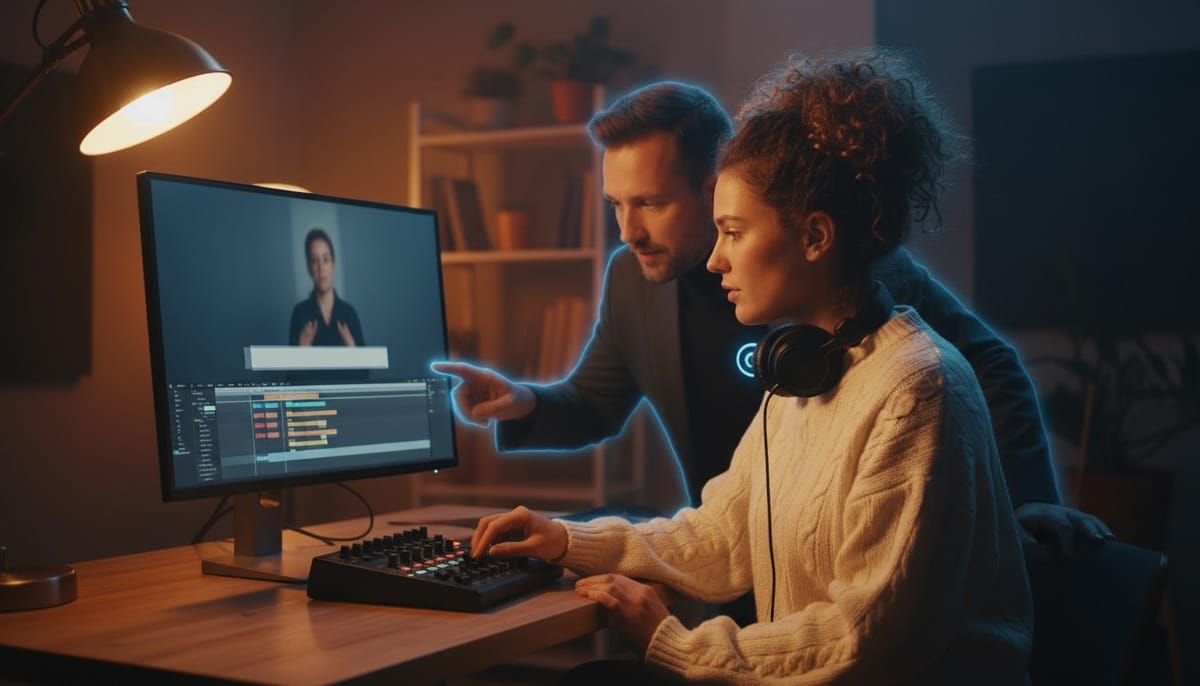
Subtitles you choose. Pick none, classic, bold, in a box or yellow. Choose small, medium or large, and low or in the middle of the frame. You can also show the name of whoever is speaking above the line. Subtitles are now cut at sentences and commas, never in the middle of a phrase, which makes a bigger difference to readability than it sounds. In an animation without a voice-over, the subtitles bar doesn't show at all.
Text on screen. Each plan can carry up to six pieces of text, each with its own place on a 3 x 3 grid, its look (in a box, outlined, or in your brand colour), its size and the moment it appears. The areas that TikTok and Instagram cover with their own buttons are kept free, so your text isn't hidden behind a like button.
Always on screen. Put your logo or a short text (a series badge, a mention) over the whole film, and leave it off the first and last plan if you prefer a clean opening and end card.
Brand kits. The Studio's design systems, the same ones it already uses for websites, now also store a video's look: colours, fonts, logo, subtitle style and what stays on screen. Apply a kit to a film in one click, or save a film you like as a kit for the next one. If you publish a video every week, this is the feature that saves you the most time.
Trim a clip. In AI videos, keep only the part of a generated clip you want. If the result is shorter than its plan, slow it down or hold its last frame. When a character is speaking, the subtitles follow the cut.
Sound. Set the music's volume and give it a gentle fade in and out. For each plan, set the level of the voice, the music and the sound effects separately, keep the clip's own sound, or drop in your own sound effect file.
Your own pictures stay yours. If you add your own photos to an AI video, the employee never regenerates them unless you ask.
Learning mode comes to the Mac
Learning mode, where your employee learns your job by watching how you work, now observes on the Mac too, with desktop app 1.0.83. It records the same things as on Windows: which app is in front, what is clicked and typed, and screenshots, on every screen. On Mac, Cmd does what Ctrl does on Windows.
To be precise about passwords: fields the system marks as password fields are never read, and they are masked on the screenshots. A password you paste into a chat or a document is not detected, so keep those out of view while learning mode runs. Apps you exclude are not recorded at all.
macOS asks for two permissions, Accessibility and Screen Recording, only when learning mode starts. The app shows exactly where to grant them in System Settings, and observation begins by itself once you have. The menu bar shows when learning mode is on and lets you pause it.
One difference from Windows: there is no on-device analysis on the Mac yet, so the captures are analysed by your instance.
Two related changes make learning mode more honest about what it can see:
- Only a computer that is really observing counts. A Mac running an older app that can't capture yet no longer starts an observation that receives nothing. Instead, the employee says it is observing through the Chrome extension until the Mac app is updated.
- Clearer while the computer gets ready. If you pause, the banner keeps showing the download progress, and observation only starts when you resume. The employee no longer tells you to start working before anything is being observed, and it is told when observation actually begins.
The groundwork for analysing captures on your own computer is also in place on the instance side. It is served to the desktop app, downloaded in the background and checked, with progress shown in the chat. It needs a desktop app update that hasn't been published yet, so treat it as coming soon rather than here.
Send big files in the chat
You can now send a video, a long recording or a heavy document of up to 500 MB in the chat, up from 5 MB. The attachment shows its upload progress, and the message waits until the file has arrived. No more file-sharing links for anything bigger than a photo.
The Mac app now runs on every Mac
Desktop app 1.0.82 for Mac is universal: it also opens on Intel Macs, which the previous version refused with "not supported by this Mac".
Cube, WhatsApp and smaller fixes
- Remove one employee from a Cube. In the Cube panel, each paired employee now has a small cross that takes them off that Cube (after a confirmation) without unpairing the others. Removing the last one unpairs the Cube.
- The Cube's task summary is the right one. It sometimes showed the employee's previous answer as the summary of what it had just done. It now waits for the new answer.
- Copy buttons work in the desktop app. Copying a message or a code block did nothing in the Windows app, and now works on both Windows and Mac. The app only writes to the clipboard and never reads it.
- WhatsApp numbers move cleanly. Giving an employee a new number when it already had one used to fail silently. If the old number is disconnected, it is now released automatically. If it is still connected, the panel says so and offers a one-click move. The employee list also shows which number each employee is on.
Want to test the most advanced AI employees? Try it here: https://Geta.Team