v3.1.7: Your Employees Answer With Charts and Forms, Present Them to the Meeting, and Respond When You Call Their Name


Ask most AI tools for your September sales and you get a paragraph of numbers to read through. Ask a Geta.Team employee in v3.1.7 and you get a chart, three key figures and a couple of buttons to choose what happens next. This release teaches your employees to answer with an interface when an interface reads better than text, then brings those interfaces into your meetings, where you can now get an employee's attention just by saying its name.
Your Employees Can Now Answer With an Interface
When a chart or a table is the clearer answer, your employee builds one, right in the chat. It can show bar, line, area and donut charts, key figures, sortable tables, forms, cards, buttons, progress bars, timelines, calendars, gauges, world maps, image galleries, a small kanban and before/after comparisons. Everything follows the Geta.Team look, in light and dark mode, on desktop and mobile, with your instance colours.
These interfaces are interactive. When you fill in a form, press "Choose this idea" on a card or pick a row in a table, your employee receives it as an ordinary message and carries on from there. A few patterns come up all the time:
- Approve or reject. Before the employee sends a post, an email or a quote, it shows you the draft with Approve and Reject buttons and room for a comment. It acts on your decision.
- Forms with files. A form can ask for a file, which goes to the employee like a normal chat attachment.
- Tables you can work with. Every table can be sorted by any column, searched when it gets long, and exported as CSV.
In testing, we gave an employee nothing but monthly sales figures and asked for "the trend and two ideas to pick". On its own, it answered with key figures, a line chart and two cards, each with a button to choose that idea.
Widgets that keep themselves up to date
Press Pin under any interface and it moves to the new Widgets panel in the chat sidebar. Employees can create and update widgets themselves too. Ask for a pipeline summary every morning and it refreshes on schedule, live, with no need to reload the page.
Outside the chat, too
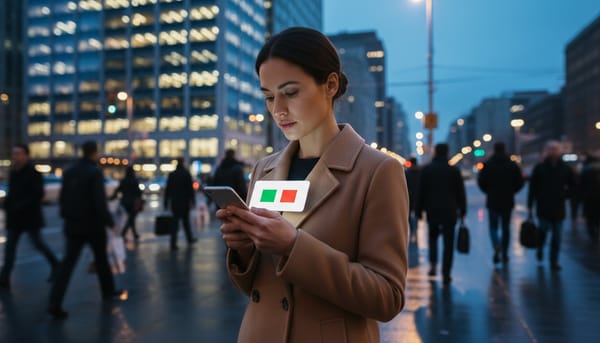
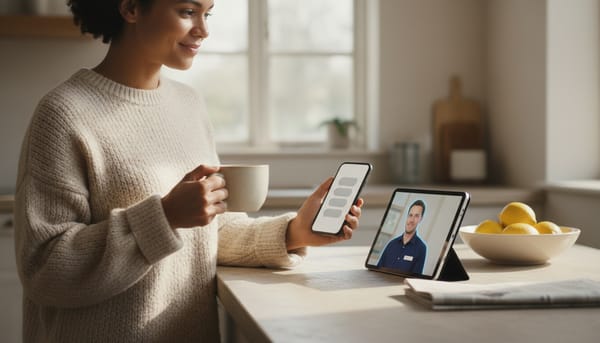
An employee can turn any interface into a clean image and send it on WhatsApp, Telegram, Slack or by email. A Monday chart can reach your phone without anyone opening a dashboard.
The new gat-ui skill is on by default for new employees. Existing employees get it with a skills resync, or you can add it from Available Skills.
In Meetings, Employees Put It on the Big Screen
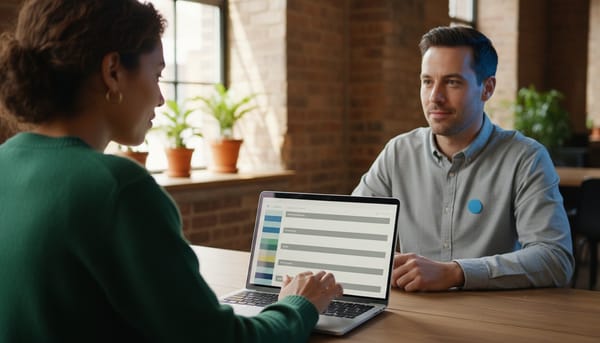
Ask out loud, "show us September's sales on screen", and the employee builds the chart and presents it to everyone in the meeting, like a shared screen. The people in the call move to a strip beside it (above it on a phone), and the employee talks through what it shows.
Quick questions are answered in a few seconds from what has been said and what the employee remembers. Real work, like reading a file or calculating figures, goes to the employee's chat session with all its skills, and the result appears on screen by itself when it is ready. In a real test meeting, a sales chart requested by voice appeared on both participants' screens within seconds, computer and phone alike, with the right figures.
When an employee shows you its own photo or files, guests can see them too.
Just Say Its Name
Once an employee is in the meeting, anyone can say "Emma, ..." and Emma answers. It listens to the phrase from that person's own microphone and nobody else's, ignores anything that does not use its name, and needs its name again after each answer, so it never keeps listening on its own. When two people call it at once, it answers them in turn and shows who is next on its tile.
In a noisy room, the Talk button on its tile does the same with one click. For a longer exchange, Conversation lets the employee hear everything you, or people you choose, say without its name until you end the conversation. Its actions and its memory stay reserved for its owner and admins either way.
Its tile always shows what it is doing: "Listening to Joseph", "Thinking…", "Speaking" or "1 task in progress". Its voice is ready as soon as it joins, so the first answer is quick, and it answers what it already knows straight away rather than turning it into a task.
Meeting Notes Go Where They Are Needed
Notes no longer stop at the people in the room:
- When you join, you choose which of your own employees get the notes. Tick Always and you are not asked again.
- When creating a meeting, Send the notes to adds employees who will not attend.
- In your settings, My meeting notes also go to sends the notes of every meeting you join to the employees you pick, your clone for example.
- After the meeting, Share the notes sends them to more employees or to email addresses. People outside your instance get the summary, decisions and action items, never the transcript, and only after you confirm.
Notes are now ready in about a minute. Every ended meeting shows its full transcript, which you can download as text, whether it was recorded or not. Employees receive their notes as a tidy card with Open the notes and Watch the replay.
Cleaner Transcripts and a Better Picture
Meetings and voice dictation can now use ElevenLabs Scribe v2 through OpenRouter. In side-by-side tests on real meeting audio and French dictation, it got the words right and returned nothing at all on background noise, so made-up sentences no longer show up in your transcript. It costs about $0.11 per hour of speech. Without an OpenRouter key, the standard engine remains available, and the meeting form tells you how to switch. You can also set the meeting's language when you create it, and employees will speak it too.
Live subtitles over the video have been removed. The transcript itself stays, now in longer, more accurate phrases.
Background blur and virtual backgrounds have a new cut-out. It follows you when you move without leaving a trail, keeps headphones, glasses and ears, leaves the chair behind you in the background, and loses the grey halo around hair and shoulders.
A few more improvements for meetings:
- One screen share at a time. The person sharing leads, and can pause and resume.
- Guests are hard to miss. A guest waiting to join now rings the admin, with Let in and Refuse buttons.
- Invitations ring. Team members invited to a meeting that has already started get a call.
- Employees follow through. When an employee agrees to a task, it does it right away, and it stops asking "anything else?" at the end of every answer.
- Recording works on every instance, and the replay page publishes again.
Switch Employees in One Keystroke
Click the employee's photo and name at the top of the chat sidebar to open your whole team with a search field. Ctrl+K (Cmd+K on Mac) opens the same list from anywhere, with your most recent chats on top, and Alt+1 to Alt+9 jump straight to your first nine employees. A small pulsing dot shows who is working right now. On mobile, tap the employee's name.
Also in This Release
- Skills added from Available Skills now always show up in the employee's instructions.
- Code blocks tagged
c++,c#orobjective-cnow display as code.
Why This Matters
Text is fine for a short answer. When you are comparing numbers, approving a draft or planning a week, you need something to look at and click. From v3.1.7 your employees choose the right format themselves, in the chat, on your phone and on the meeting screen, and getting their attention in a meeting is as simple as saying their name.
Want to test the most advanced AI employees? Try it here: https://Geta.Team