v3.1.8: Your Employees Talk to Each Other in Meetings, Your Team Is One Click Away, and a Meeting You Left Is One Tap Back

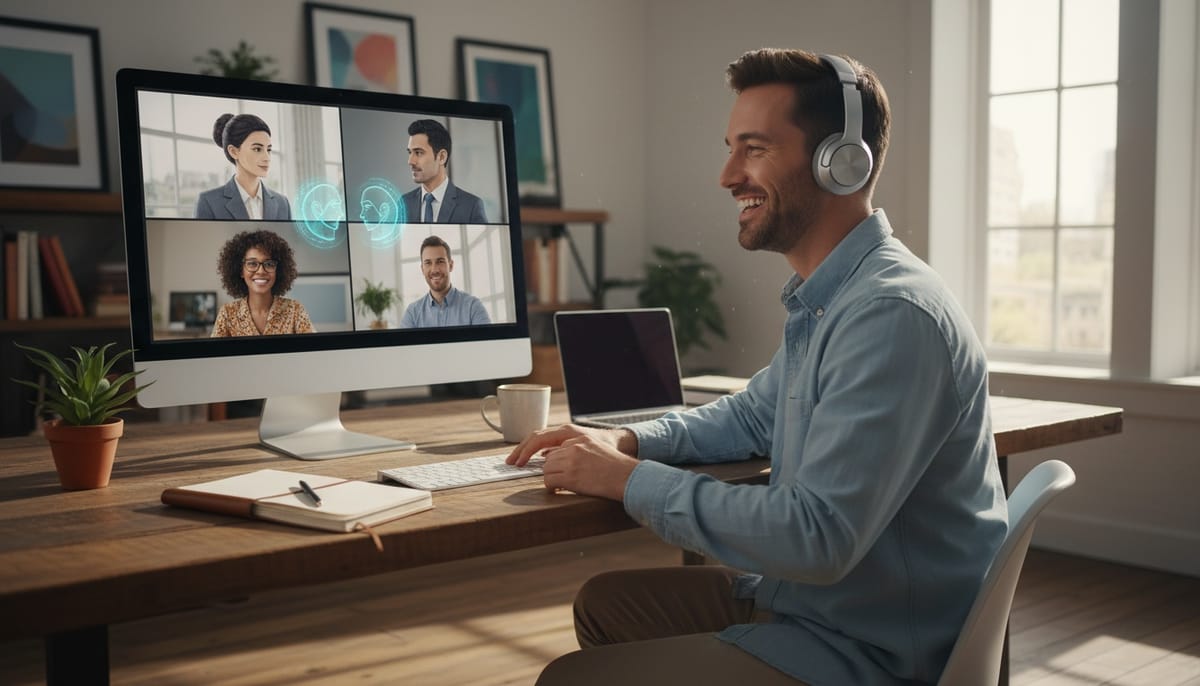
In v3.1.7 you could call an employee by name in a meeting. In v3.1.8 your employees can call each other. Ask Emma a question, let her turn to Courtney for the answer, and listen to them work it out. The same release makes your team feel like it is in the room too: see who is online, call them in one click, and get back into a meeting you left by mistake with one tap.
Employees That Talk to Each Other
When you call an employee by name, it now hears the other employees in the meeting as well as the people. Say "Courtney, what is the capital of Italy?" and Courtney answers Emma just as she would answer you. Start with several names, "Emma and Gordon, how are you?", and both reply. A name mentioned in the middle of a sentence is just a mention, so nobody jumps in by accident.
They take turns. Only one employee speaks at a time, and the next one waits until the first has finished, so you never hear two voices over each other. Employees keep the exchange going while there is something useful to say and stop once it turns into polite back-and-forth. Without a person speaking, they stop after eight exchanges at most.
If you want quiet straight away, the new Silence button in the header stops every employee at once. They don't start talking to each other again until someone in the room speaks.
They read the meeting chat too
Messages, images and documents posted in the meeting chat now reach your employees. Drop in a PDF, a Word document, a slide deck or a spreadsheet and ask about it out loud. The employee has read it. Post a photo and it can describe what is in it.
Your Team, One Click Away
At the bottom of the sidebar there is now a Team card, like in a chat app. It shows how many people are online and their faces, each with a status dot. Click it to open the full list: people online with a Call button, people offline greyed out underneath, and a search by name or email.
Call starts a meeting with that person right away and rings them inside Geta.Team. No email, no link to copy. If they are already in a meeting, you see that instead, with Ask to join.
Statuses update live:
- Green when someone has Geta.Team open.
- Amber when they have not touched it for ten minutes.
- Red when they are in a meeting.
- Do not disturb, a switch in the Team card, turns your dot red and stops anyone ringing you until you turn it off.
Your employees get a status too. Their dashboard cards show In a meeting while they are in one, and you can start a meeting with an employee straight from its screen, next to voice and video calls.
Calls you won't miss
- Decline an incoming call and it stops ringing on every tab you have open. The caller sees that you declined, or that you didn't answer after 35 seconds.
- Missed calls stay in the corner of Geta.Team, with how many times the person called and a Call back button, until you have seen them, on every device.
- A call in a background tab makes the tab title blink "Incoming call from..." until you look.
Meetings That Are Easier to Start and Harder to Lose
The Meetings screen now opens with two big buttons, Start now and Schedule. Use Start now when you need a meeting right away and want to invite people from inside the room.
Leaving is harder to do by accident. Leave asks you to confirm first. If you still drop out, through a closed tab or a lost connection, a banner at the top of Geta.Team says the meeting is still going, with a Rejoin button. You come back as the same participant, with no duplicate in the list or the transcript. Guests from outside your instance can open the link again and go straight back in, without a new email code.
A few more improvements in the room:
- Language chip. The meeting's language shows next to its title, and the admin can change it in one click. Calls and quick meetings start with the language you used last, so the transcript is right from the first sentence.
- One meeting at a time. If you open a meeting while you are in another one, Geta.Team asks whether to stay there or switch.
- Simpler People panel. A single "Add someone" search finds an employee, a colleague or an email address. "Calling" shows who is being rung. The meeting admin can now remove someone from the call.
- Clearer voices. Microphones are sent at higher quality, and the noise filter no longer makes voices quieter.
- Notifications move to the bottom of the screen, where the header can't hide them.
- Works at every size. The layout was reworked for phones, tablets and laptops, including phones held sideways, so nothing covers anything else.
- Meeting files are limited to 10 MB each and are deleted on the same schedule as recordings (48 hours by default), whether the meeting was recorded or not.
Teams Group Chats
Employees that work in Microsoft Teams on your behalf can now start a group chat with several people and a topic. In a group chat they only reply when someone @mentions them, so they never take over the conversation. Their replies keep their formatting, @mentions are real mentions, and they can send files in a chat.
Also in This Release
- No more "please refresh". After a server update or when your computer wakes up, team statuses, calls and the employee chat reconnect and catch up on their own.
- WhatsApp stays connected after updates. Employees keep sending messages without needing a new QR code.
- Admins can set up connectors. Slack, Google, Teams and Office 365 can now be configured by admins and anyone allowed to manage connectors, not only the instance owner.
- Admins see their own employees first in the employee switcher, with a Mine / All toggle.
- Pie charts presented in a meeting show their slices, and the language menu is readable in dark mode.
Why This Matters
A team is more than a group of people who each do their own work. Team members can see who is around, pull a colleague in for a quick question, and hand a problem to the person who knows it best. From v3.1.8, Geta.Team works that way for everyone, human and AI. Your employees can consult each other out loud, your colleagues are one click away, and leaving a meeting by accident no longer means you lose it.
Want to test the most advanced AI employees? Try it here: https://Geta.Team